04Guide 4 of 4
Handle replies
When someone replies, that campaign stops writing to them and the conversation waits for you in Replies. Read the whole thread, answer from the same mailbox, and treat a request to stop as a stop.
About 5 minutes · 4 steps · Screenshots from an example workspace with fictional companies
Before you start
- A campaign that has sent
- IMAP connected on the sending mailbox (see the first guide)
Step 1: Find the conversation
Replies lists one conversation per person, newest first, with the company, the latest message, the campaign and a label. The labels are interested, meeting request, question, objection, not interested, out of office, unsubscribe and other. A reply still waiting for its label shows Not labelled yet.
Labels are added automatically, so read the reply before you act on one. You can narrow the list to one project.
Worth knowing: Replies are checked every 5 minutes, and only replies to emails MyLeadTeam sent appear here. There is no filter by label yet.
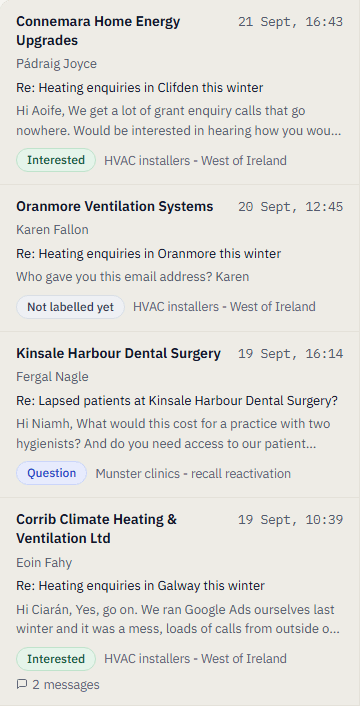
Example workspace. The Replies list, one conversation per person.Open full size (opens in a new tab) Step 2: Read the whole thread
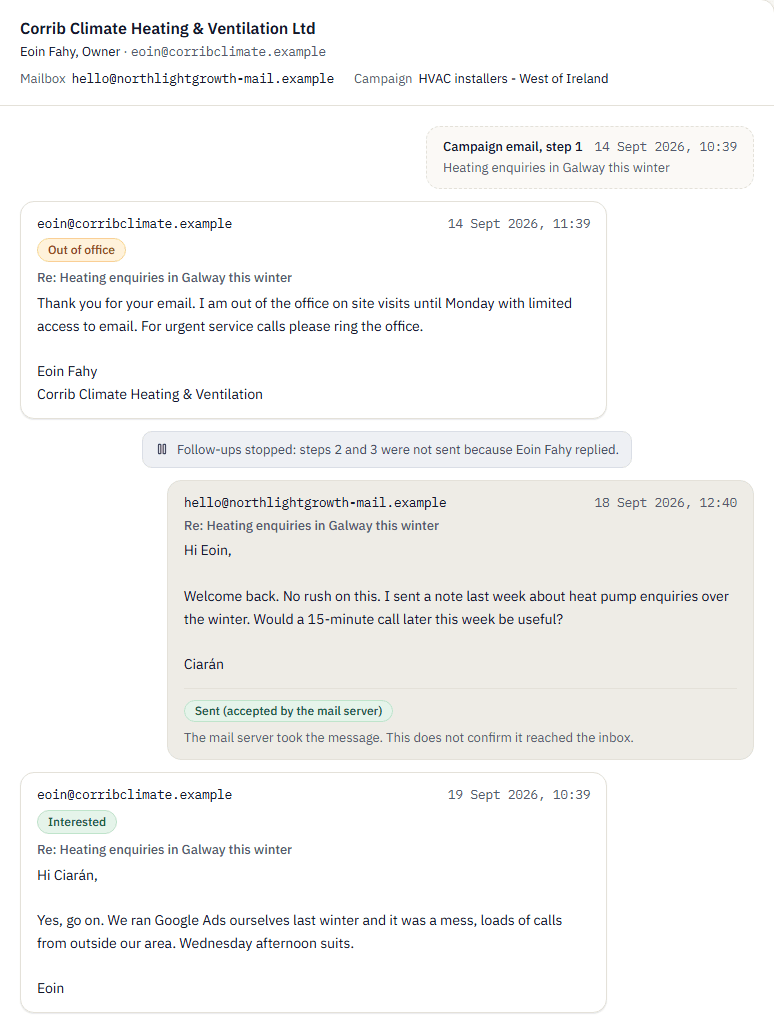
The thread shows the campaign emails that went out, every reply and anything your team sent from here. The header names the mailbox the conversation started on and the campaign.
Any reply, even an out-of-office, stops that campaign's remaining emails to the person. Follow-ups already written are shown as not sent; later ones are never written. Nothing resumes on its own. Other campaigns the person is in carry on, unless the reply asked to stop.
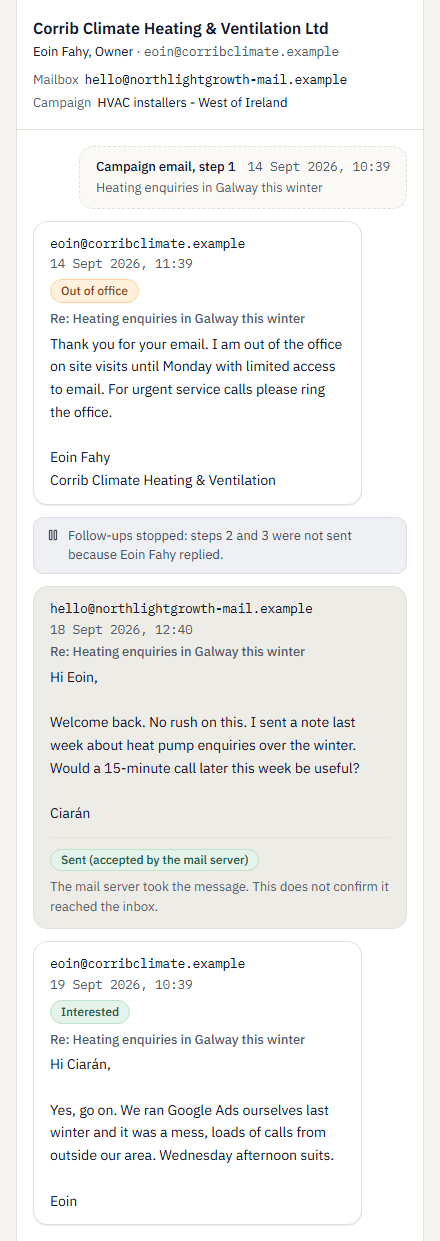
Example workspace. An out-of-office reply stopped steps 2 and 3; the team answered from the thread.Open full size (opens in a new tab) Step 3: Reply from the thread
Write under the conversation and choose Send. The reply goes once, only from the mailbox the conversation started on. If that mailbox is paused or cannot send, the reply is held with the reason and is not moved to another mailbox.
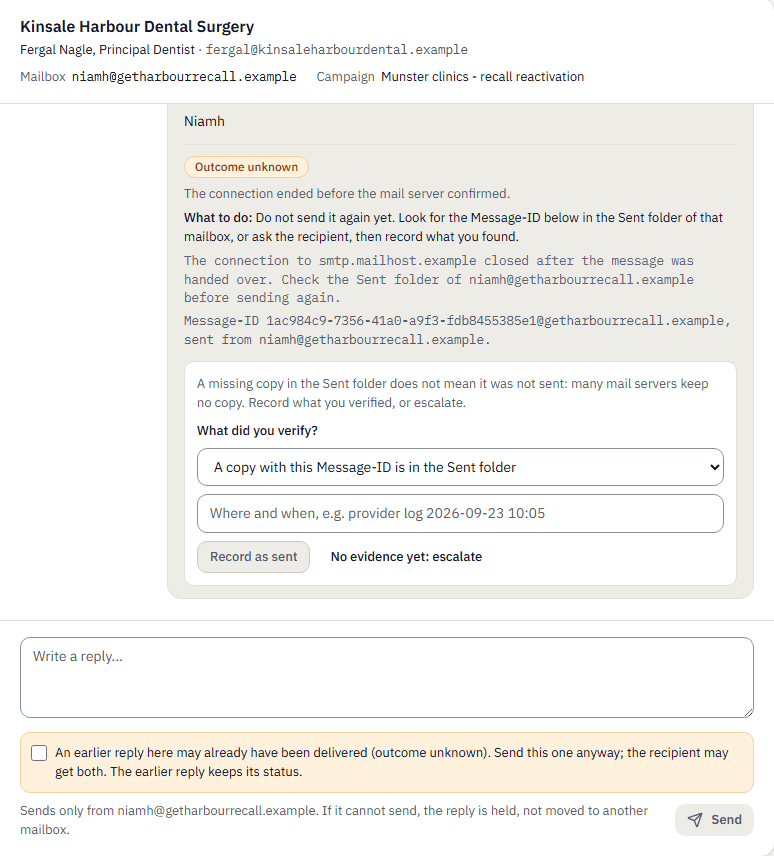
Each reply shows its state. Queued means recorded, not sent yet. Sent (accepted by the mail server) does not confirm it reached the inbox. Not sent comes with the reason and what to do. For Outcome unknown, do not send again yet: look for the Message-ID in that mailbox's Sent folder or ask the recipient, then record what you found.
Worth knowing: If the mailbox is paused, fix it on Mailboxes rather than writing from another address.
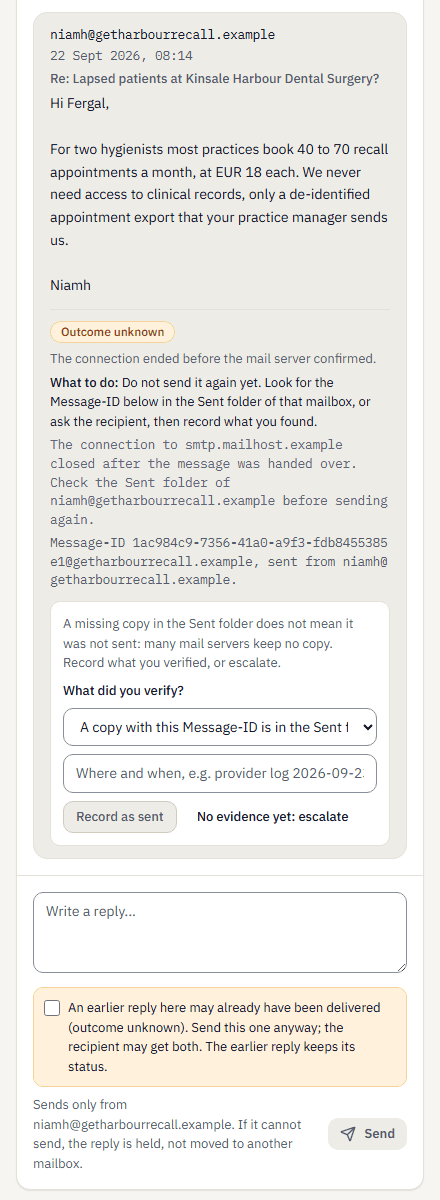
Example workspace. A reply whose outcome is unknown, and what the thread asks you to do about it.Open full size (opens in a new tab) Step 4: Unsubscribes and bounces protect the whole organisation
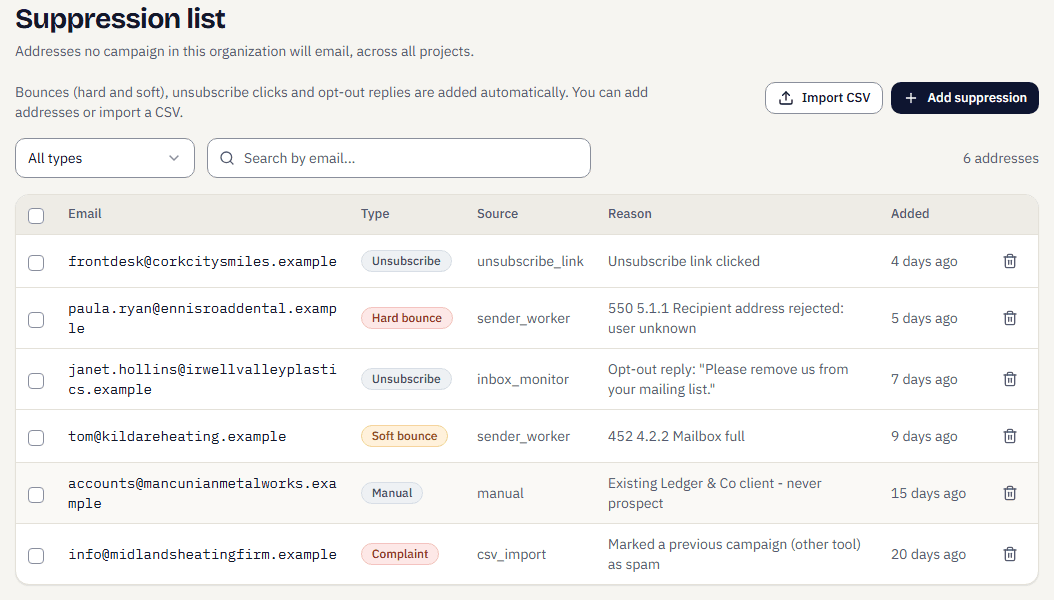
An unsubscribe click, a reply asking to stop and a bounce, hard or soft, add the address to your suppression list. The list covers every project in your organisation: no campaign sends to that address and a reply to it cannot be sent.
You find the list under Settings, Suppression list. You can also add addresses by hand or import a CSV of addresses you must never email.
Worth knowing: A soft bounce, such as a full mailbox, also suppresses the address. Treat a request to stop as a stop.
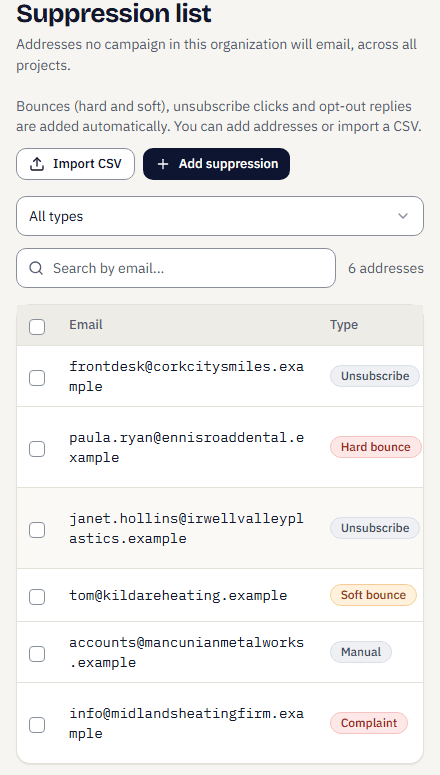
Example workspace. The organisation's suppression list, filled by unsubscribes, opt-out replies, bounces and your own entries.Open full size (opens in a new tab)
That was the last guide
Back to all four guides
Keep the guides open next to the app while you run your first small campaign.
Stuck on a step? Tell us the screen and the message you see. Never include a password.
Ask a question